Using scripts
You can use scripts to run a set of successive operations in batch. In the script, you define the sequence of operations. You can also use the results from an operation in subsequent operations.
 Creating scripts
- To create a new script, open the Workflow Automation (Old) form (Tools > Workflow Automation (Old)).
- Right-click on the Scripts folder, and then select Create New Script.
- To add operations in the script, double-click the new script icon to open the editor.
- In the Graphical View tab of the editor, right-click in the empty space (the blank script) and add an operations parameters, and flow control functions to the script. You can also copy existing operations to the script.
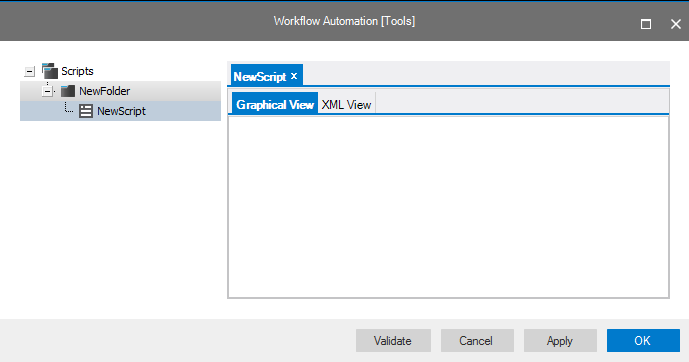
The Workflow Automation (Old) form click to enlarge
Script commands
The following options are available via the right-click context menu for the folder and script objects in the Workflow Automation (Old) form.
Create New Folder Creates a new folder under Scripts.
Create New Script Creates new script in a new folder.
Import Folder Opens browser to select and import existing folder.
Import Script Opens browser to select and import existing script.
Remove Folder Removes selected folder.
Export Folder Opens browser to save selected folder.
Execute Script Executes selected script.
Create Copy Creates a copy of selected script in same folder.
Copy Script Copies script for pasting in other folder.
Paste Script Pastes copied script in selected folder.
Edit Script Opens selected script.
Export Script Opens Explorer view to save selected script.
Remove Script Removes selected script from folder.