Background to watertight surfaces
During creation of the structural model with the Structural Modeling workflow (model > 3D Structure > Structural Modeling), you have the option to 'Create watertight surfaces' (checkbox on the Construct Surfaces form).
With the 'Create watertight surfaces' checkbox checked, the application will attempt to produce watertight connections between the surfaces (which are being constructed at this stage of the modeling workflow) and the existing surfaces from the fault model (also called 'discontinuity surfaces' or 'discontinuities', which can be faults, unconformities and intrusions) assigned during the Assign Data step of the workflow.
Both with and without the 'Create watertight surfaces' checkbox checked, the Structural Modeling workflow uses gridding (QC grid) to construct the surfaces. Since this grid is regularly sampled and has (geometric) rules and limitations, the representation of discontinuities in the grid differs slightly from the tri-mesh representations of these discontinuities in the Fault Model and 3D Structural Model.
With the 'Create watertight surfaces' checkbox unchecked, a small gap is left at the intersection between the constructed surfaces and the discontinuity surfaces. This gap accounts for the geometrical differences between grid and tri-mesh. In case a watertight model would be required later, this would mean you would have to fill these gaps 'manually' with the available tools (e.g. 'extend' and 'retract' tools of the Editing Tools). With the 'Create watertight surfaces' checkbox checked, however, an additional algorithm creates full watertight intersections. Rather than 'just' filling the gap left as described above, the algorithm directly uses all data available to produce the most plausible watertight intersections. Particularly around complex geometric situations (e.g. where multiple discontinuities and stratigraphic surfaces come together) these calculations can be challenging, however, the result greatly outperforms the manual filling of gaps, which can only handle single intersections one-by-one, and is cumbersome.
Advantages of watertight surfaces
Creating a watertight model with the 'Create watertight surfaces' option has several advantages. Apart from the fact that it is visually more appealing, the main advantage is that during subsequent modeling steps, valuable information around intersections is retained: this means less extrapolation by the application and more consistency in the final model. This is particularly valuable when the model is generated in an automatic manner (for example when re-running the structural modeling workflow, or with workflow automation), where the use of tools and manual intervention is not feasible. Furthermore, having a watertight tri-mesh structure is essential if you want to use the 3D structural model as input for generating a volume mesh for geomechanical simulation.
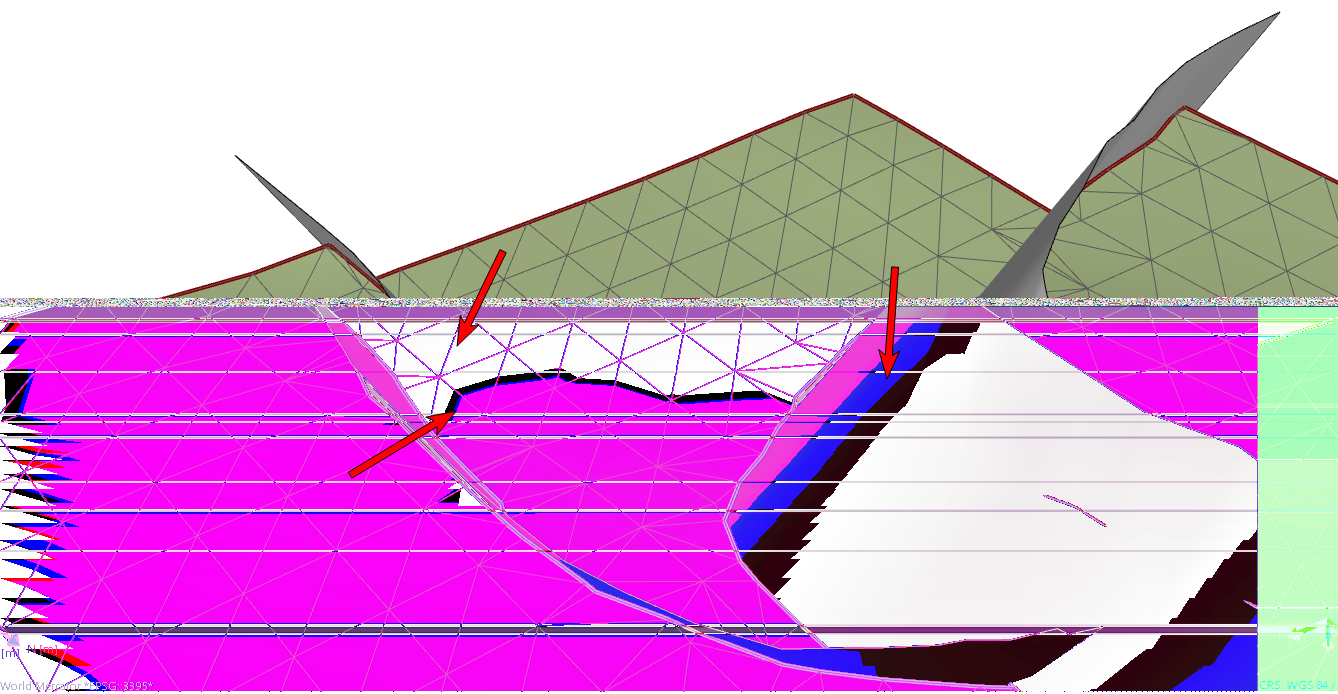
With the 'Create watertight surfaces' checkbox not checked, the intersections between the constructed surfaces and faults are not watertight. click to enlarge
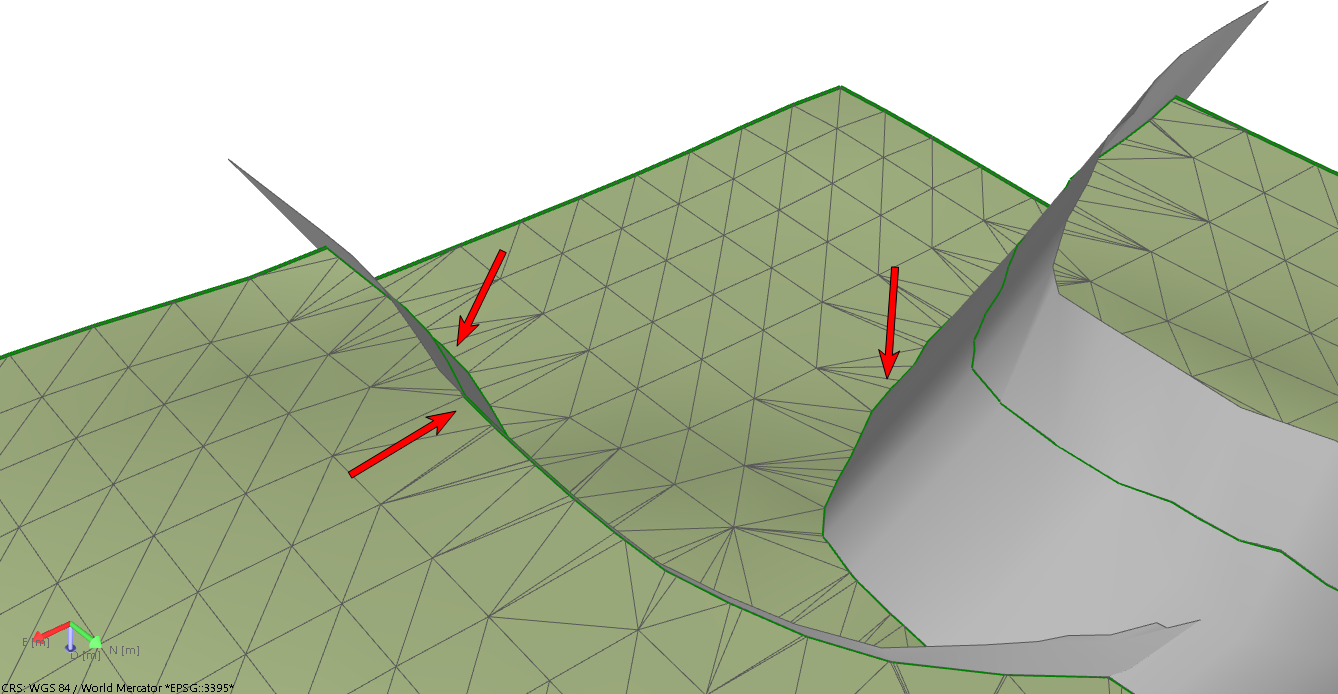
With the 'Create watertight surfaces' checkbox checked, all intersections between the horizon surfaces and faults are watertight. click to enlarge
Potential artifacts related to watertightness
In exceptional cases the following items/circumstances can cause artifacts in constructed surfaces:
- Intrusions and unconformities (especially low-angle unconformities)
- Vertical faults
Artifacts that can arise in the constructed surfaces when using the 'Create watertight surfaces' option can be:
- Poor triangulation (triangles on top of each other, folded edges, flat triangles, internal boundaries)
- Holes/gaps
- Completely missing tri-mesh patches
- Mismatches with the QC grid
Furthermore, 3D grids constructed from a watertight structural model may, in rare cases, contain artifacts. If artifacts occur, they are likely to occur in the following locations:
- Tiplines
- Branchlines
- Complex geometries
- Boundary of the model
The following tools are at hand to find and resolve issues if needed: