The JewelSuite Batch Server and the JewelSuite Service Coordinator
The uncertainty calculations performed with the study strip, when running a study, require an execution platform. When running locally, this means the JewelSuite Service Coordinator and JewelSuite Batch Server need to be installed. The JewelSuite Subsurface Modeling installer automatically installs these required applications.
The JewelSuite Batch Server is a separate executable that contains the core part (required for uncertainty calculations) of the JewelSuite application. It is in fact the application without the user interface. It is used as the calculation engine in the uncertainty modeling workflows, available in the study strip of the application. The number of uncertainties that vary within a study, as well as the number of observables selected for the output, will each increase the size of the output table and hence will increase the demand on the machine hardware. The JewelSuite Service Coordinator is also a separate executable that contains the functionality to start JewelSuite Batch Servers for every realization that needs to be calculated.
When you start a study run, the JewelSuite Service Coordinator starts automatically. A console window opens (although minimized), which must not be closed or its cursor locked until the study run has been finished. If it is closed down during the study run by accident, it needs to be restarted manually (it will not automatically re-start). After the re-start, it will try to recover the currently active study runs, however, some realizations may have failed and might require a re-run.
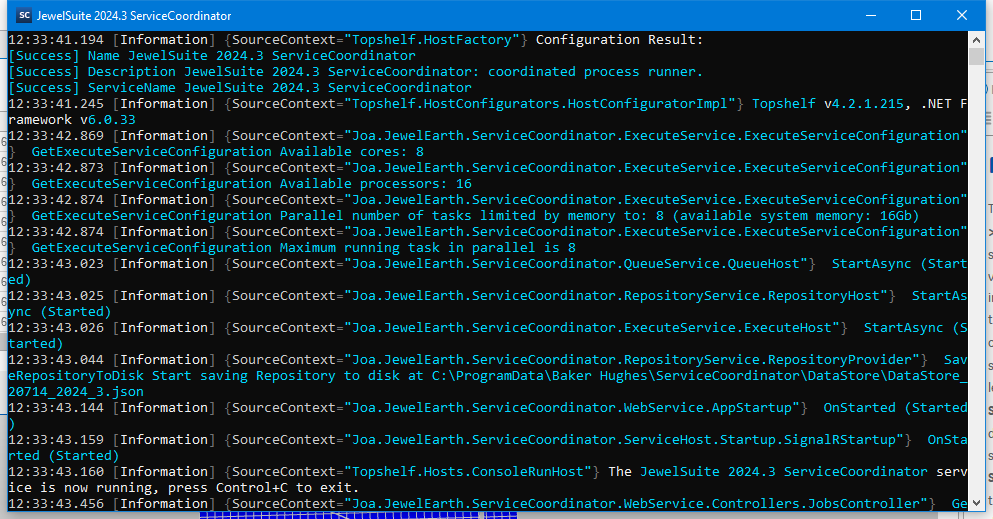
The JewelSuite Service Coordinator text window. The window must remain open while running a study (you can 'minimize' it though). click to enlarge
The main JewelSuite Subsurface Modeling executable will schedule the number of Batch Server jobs to run and uses the JewelSuite Service Coordinator to do that. The results will be automatically reported back to the JewelSuite application.
The JewelSuite Batch Server configuration
The JewelSuiteBatch Server has its own configuration file called 'JEBS_serilog.json', found in C:\Program Files\Baker Hughes\<application name>\<version>\<JewelSuite & version Batch Server > Configurations. In this file you can for instance specify parameters related to logging.
For production environments the settings below are the adviced defaults:
"MinimumLevel": {
  "Default": "Information"
  "Trace":"Information"
  "Configuration":"Information"
  "Performance":"Error" (which means disabled)
  "Reporting":"Warning" (which means disabled)
}
Possible values (in order) are
- Error
- Warning
- Information
- Debug
- Verbose
Only put "Reporting" at "Debug” or “Information” if you require usage statistics in the logs. With these usage statistics (if collected centrally) you can evaluate which functionality (strip or context menu actions) is used.
By default, the log-files can be found at C:\Users\<username>\AppData\Local\Baker Hughes\Logs.
The % of the maximum available cores on the your machine can be adjusted in the the HostSettings.json of the JewelSuite Service Coordinator, which can be found in C:\Program Files\Baker Hughes\<application name>\<version>\<product name & version> Service Coordinator. For example C:\Program Files\Baker Hughes\JewelSuite Subsurface Modeling\2025.4\JewelSuite 2025.4 Service Coordinator. The default value is 60.
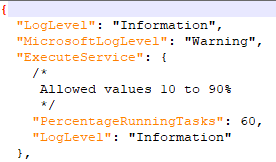
You can change the % of the maximum available cores in the HostSettings.json file. click to enlarge
The PercentageRunningTasks will only accept settings from 10% to 90%.
As an alternative, you can replace this setting with the number of JewelSuite Batch Servers that can be started simultaneously, MaxRunningTasks.
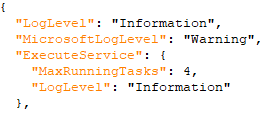
You can change the number of batch servers that can be started simultaneously by changing the number in the HostSettings.json file. click to enlarge
The reason for increasing 'PercentageRunningTasks' can be the capacity of the hardware of the local system. When you increase the %, follow these guidelines and do not exceed these numbers:
- Average maximum between 70 and 90% CPU usage
- Average Memory/RAM usage up to 80%, but never above 90%
- Average Disk I/O usage up to 80%, but never above 90%
- Average network I/O up to 50%, but prevent above 75% (network utilization should not peak too high).
Other essential settings (related to the JewelSuite Batch Server tasks) that you can update in the HostSettings.json are:
- Level of detail/info to be logged
- Data file name
- Data file location
- Port number
You can observe the starting and stopping of the JewelSuite Batch Server in the Output Information pane (Workspace > Panes > Output Information).
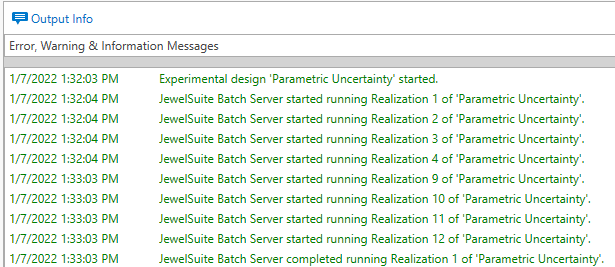
In green the status of the Batch Server, shown in the Output Information pane (Workspace > Panes > Output Information). click to enlarge