Checking the quality of the tri-meshes
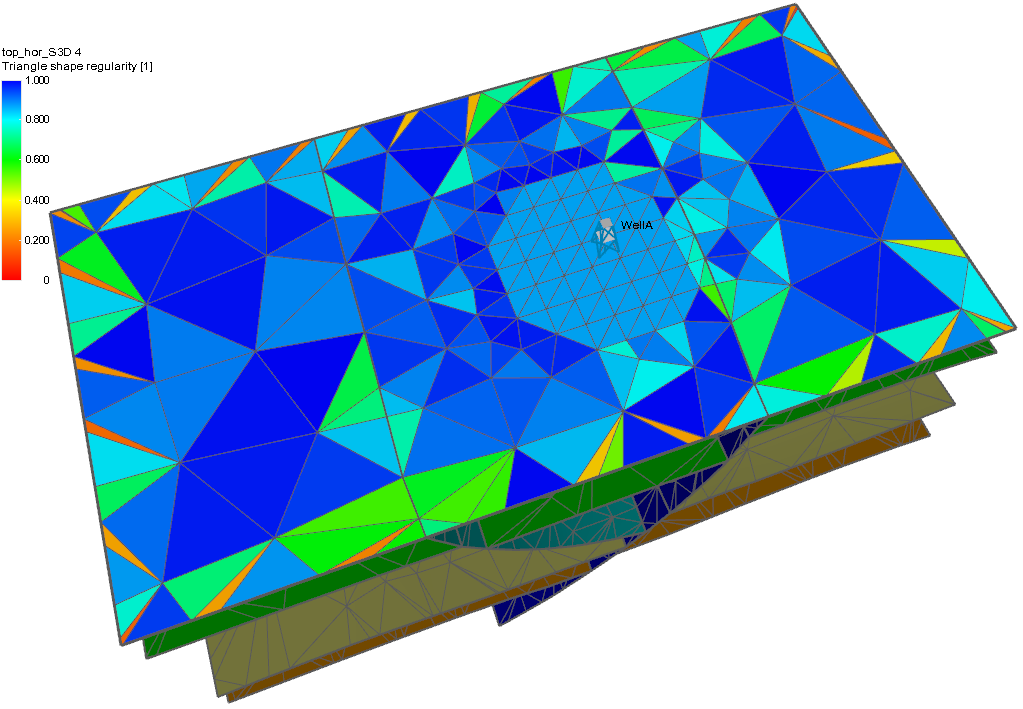
Viewing triangle shape regularity in a 3D view. As with all the properties, red (0) is 'bad' and blue (1) is 'best' click to enlarge
You can assess the quality of tri-meshes by viewing various geometrical properties of its triangles. If these do not meet your requirements, you can easily change some of the parameters, triangulate again and check the properties again.
There are five geometrical properties that you can view to give you an idea of the quality of your mesh:
Triangle shape regularity This is calculated according to the definition of Bank, R.E. and Xu, J. (1996) - An algorithm for coarsening unstructured meshes:
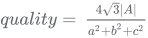
where
|A| is the surface area of the triangle, and
a, b and c are the lengths of the sides of the triangle.
The results are normalized and range between 0 (degenerate, displayed as red in your 3D view) and 1 (ideal triangle, in blue).
Triangle area Absolute values displayed on a grayscale in your 3D view.
Triangle minimum angle Ranging between 0° (degenerate, displayed as red in your 3D view) and 60° (ideal, in blue).
Triangle radius ratio The inradius divided by the circumradius. The values that range from 0 to ½ are normalized to give displayed values ranging from 0 (degenerate, displayed as red in your 3D view) and 1 (ideal, in blue).
Triangle radius-edge ratio This would normally be (circumradius / minimum side length) and range from ∞ (bad) to 1/√3 (good), but the displayed values are shown as the inverse and are normalized to give displayed values ranging from 0 (degenerate, displayed as red in your 3D view) and 1 (ideal, in blue).
Viewing the triangle geometry properties
You can view the geometrical properties in your 3D view by turning on their display in the JewelExplorer. First, select the tri-mesh in your 3D mesh Structural Model in the JewelExplorer and display it in your 3D view.
In the JewelExplorer click the '+' icon to expand the tri-mesh and show its properties. If the triangle geometry properties are not yet shown, right-click on the tri-mesh and select Properties > Default geometric properties > Mesh quality and then select the geometry property you want to view. This property will be added to the properties of the tri-mesh shown in the JewelExplorer. Check the checkbox next to this property to display it in your 3D view.