Dynamic Help
Information and assistance as and when you need it is provided by Dynamic Help.
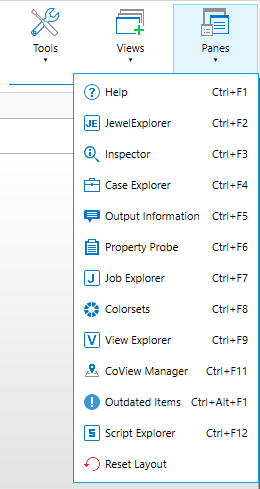
Display the Help from the Panes list click to enlarge
To view the Dynamic Help, open the Help pane from the Panes drop-down list, use the ? icon on the forms or use Ctrl + F1, see also Using the panes. Whenever you click a button or object, the Dynamic Help will provide information relating to the action you have taken.
If you follow links in the Dynamic Help, you can go back to the previous topic you were viewing, or forward to a topic you have previously gone back from by clicking the Back  and Forward
  icons at the top of the Help. You can also browse to the previous and next topics in the Help by clicking the Previous
  and Next
  icons at the bottom of each Help topic. You can lock a help topic on your workspace by using the
  icon. To continue with the Dynamic Help functionality use the unlock
  icon. Finally, you can print the current topic, hide the highlighting of text from a search, or expand all the text if there are drop-downs in the topic from a menu that appears when you click the Options
  icon.
icon.
While the Dynamic Help will continue to change to reflect what you are doing, you can always view a table of contents and index of the user documentation by clicking the Show/Hide Navigation icon  at the top of the Dynamic Help. In the navigation pane that appears, click Contents or Index to view the full table of contents or index of the user documentation, or Glossary to view a glossary of commonly used terms. Click Home to hide the contents, index or glossary you have displayed.
You can also search the documentation for particular words; type in the search field at the top and press Enter.
Click the Show/Hide Navigation icon again to hide the navigation pane.
Resizing the Dynamic Help pane
By default, the Dynamic Help is shown in a relatively narrow pane. You can, however, drag the border between the Inspector and your view area to make it wider. When you do this, the Help will automatically change to show you the navigation pane on the left and a separate navigation bar along the top.
You can still quickly hide and show the navigation by clicking the Hide Navigation  icon, or the Show Navigation
  icon if the navigation pane is hidden. Apart from showing or hiding the navigation completely, you can drag the right border of the navigation pane left or right to make it narrower or wider.
With the navigation shown in the wide Help view, you can select between displaying the contents, index or glossary by clicking the Contents icon  , Index icon
  or Glossary icon
  .
.
If you have multiple monitors, you can have the Help display continuously in its own window by detaching it from the rest of the application; see Using the panes for details.