Editing polylines
The floating palette (Tools > Editing Tools at the right of the Strip) contains a range of tools for creating new data or editing the geometry of surfaces represented as polyline sets by adding, moving and removing polylines or their nodes and segments.
 Add Polyline (Shortcut key: W) Add a new polyline to a polyline set. Select the polyline set to which you want to add the new polyline and then select the tool. To add polyline nodes click either on an object, in empty space or in an empty view. Adding polyline nodes in an empty view or in empty space before clicking on any object, places the nodes at zero depth. After clicking on an object, any new polyline node is then set at the depth of the last click on the object.
 in the 3D View toolbar. In general, the more you rotate your view towards the side (e.g. 'View from North' or 'View from East' ) the higher the chance of the new polyline nodes to not be at the location where you clicked. In this case, click the reset icon
  in the 3D View toolbar to reset your view and visualize the newly added data.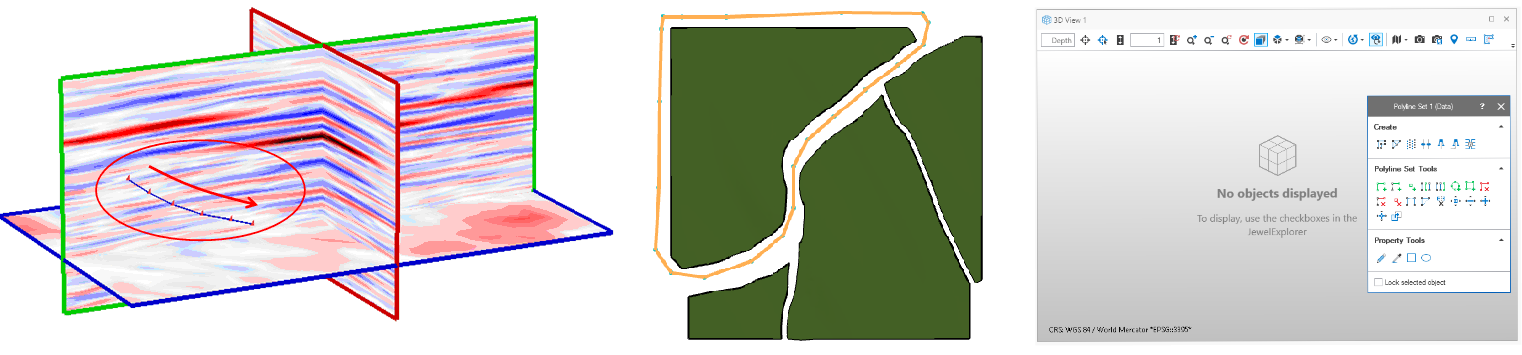
Adding a new polyline by clicking on a seismic surface, in empty space outside a surface or in a completely empty view. click to enlarge
 Extend Polyline (Shortcut key: Ctrl+W) Add nodes to the start or end of a polyline. Select the polyline set and then the tool. Click on the polyline you want to extend (the start and end of the polyline are shown). Click on either the start or end of the polyline you want to extend, then click on a surface or in empty space to add points to that end of the polyline. Double-click to stop adding points and to complete the extension of the polyline.
 Add Node (Shortcut key: Q) Add a node to a polyline. Select the polyline set and then the tool. Click on the polyline at the location where you want to add the node.
 Add Polyline In-Between (Shortcut key: B) Add a polyline in-between two adjacent polylines. Select the polyline set and then the tool. Click on a polyline, subsequently click on the polyline next to it. A new polyline is added in-between, this new polyline will have the same amount of nodes as the first clicked polyline.
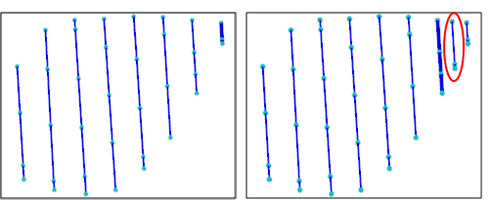
Before and after adding a polyline in-between two polylines click to enlarge
 Extend (Shortcut key: V) Add a new polyline to the polyline set, next to one of the two outermost polylines. Select the polyline set and then the tool. Click on one of the two outermost polylines. A copy of the selected polyline will be added as a new polyline to the polyline set.
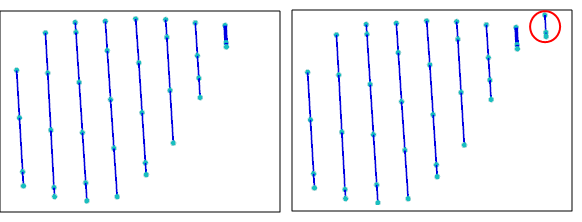
Before and after extending a polyline set click to enlarge
 Add Circle Shaped Polyline (Shortcut key: K) Add a circle shaped polyline to the polyline set. Select the polyline set and then the tool. Upon selecting the tool, the 'Settings' section on the floating palette opens. Here you can change the radius, dip and azimuth of the circle shaped polyline before you create the circle shaped polyline. Click at the location where you want to add a circular polyline. This can be a location on the selected polyline set, on a surface, outside a surface in empty space, or in an empty view. Adding a circular polyline in an empty view or in empty space before clicking on any object, places the polyline at zero depth. After clicking on an object, any new circular polyline is then set at the depth of the last click on the object.
 Add Rectangular Shaped Polyline (Shortcut key: L) Add a rectangle shaped polyline to the polyline set. Select the polyline set and then the tool. Upon selecting the tool, the 'Settings' section on the floating palette is opened. Here you can change the width, length, dip and azimuth of the rectangular shaped polyline before you create the circle shaped polyline. Click at the location where you want to add a rectangular polyline. This can be a location on the selected polyline set, on a surface, outside a surface in empty space, or in an empty view. Adding a rectangular polyline in an empty view or in empty space before clicking on any object, places the polyline at zero depth. After clicking on an object, any new rectangular polyline is then set at the depth of the last click on the object.
 Remove Polyline (Shortcut key: X) Remove a complete polyline from a polyline set. Select the polyline set and then the tool. Upon selecting the tool, the 'Settings' section on the floating palette is opened.
Remove single line / Remove connecting lines
A polyline can consist of multiple line ID's. This can be the case if you import polylines from another application, or when you add nodes to an existing polyline. When you want to remove such a polyline, the options remove single line and remove connecting lines can be used. If you want to remove only part of such a polyline, select remove single line. If you want to remove the complete polyline, select remove connecting lines. You can use context menu of the selected polyline to show the line ID's: name of the polyline set > Properties > Default Geometry Properties > Line id.
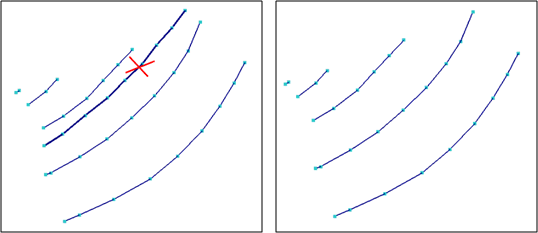
Before and after removing a polyline, line ID is not shown click to enlarge
 Remove Segment (Shortcut key: Ctrl+K) Remove a segment from a polyline. The connecting nodes are not removed and a gap is left between the nodes. The polyline is split. Select the polyline set and then the tool. Click on the segment you want to remove. You can also remove segments under a rectangle. Ctrl+Shift and drag to draw a rectangle in your view. All segments under the rectangle will be removed.
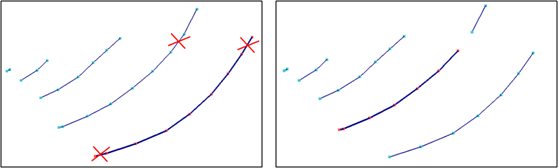
Before and after removing three segments click to enlarge
 Remove Node (Ctrl+Q) Select the polyline set and then the tool. Click on the node you want to remove. You can also remove multiple nodes under a rectangle. Ctrl+Shift and drag to draw a rectangle in your view. All nodes under the rectangle will be removed.
 Connect Polylines (Shortcut key: P) Connect two polylines. Select the polyline set and then the tool. Click towards the end of one of the polylines you wish to connect (the selected end is indicated by a green ball). Click towards the end of the polyline that you wish to connect the first polyline to.
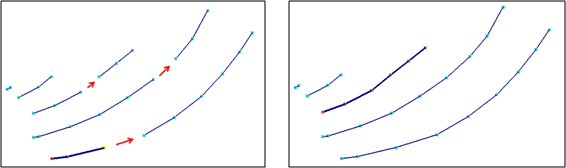
Before and after connecting polylines click to enlarge
 Close/Unclose Polyline (Shortcut key: C) Join (close) the two ends of a polyline or, if the polyline is already closed, unclose it. Select the polyline set and then the tool. Click on the polyline you want to close or unclose. The segment that is added last will be the segment that is removed when you unclose a polyline.
 Split Polyline (Shortcut key: G) Split a polyline at a node. The two parts become separate polylines. Select the polyline set and then the tool. Click on the polyline you want to split at the node where you want the split. The polyline will still have the same shape. To visualize the split, it is recommended to select the ID property for display. You can use context menu of the selected polyline to show the line ID's: name of the polyline set > Properties > Default Geometry Properties > Line id.
 Move Node (Shortcut key: M) Select the polyline set and then the tool. Click on the node you want to move. Hold down the Ctrl key and drag the node to its desired location. Alternatively, hold down the N, E, or D key and drag to move the node along the North, East or Depth directions respectively. To move a single node along a polyline, select the node and use Shift + drag. To move multiple nodes under a rectangle, first select the nodes using Ctrl+Shift and drag. All the selected nodes are highlighted in the view. Next, use the Ctrl key to freely move the selected nodes, or use the N, E, D key to moves the node along the North, East or Depth directions respectively.
 Move Segment (Shortcut key: Ctrl+J) Move a segment in a polyline. Select the polyline set and then the tool. Click on the segment you want to move (this segment is highlighted and displays a small ball to indicate it is selected). Hold down the Ctrl key and drag the segment to its desired location on a surface. Alternatively, hold down the N, E or D key and drag to move the segment along the North, East or Depth directions respectively. To move multiple segments under a rectangle, first select the segments using Ctrl+Shift and drag. All the selected segments are highlighted in the view. Next, use the Ctrl key to freely move the selected segments, or use the N, E, D key to moves the segments along the North, East or Depth directions respectively.
 Move Polyline (Shortcut key: R) Move a polyline. Select the polyline set and then the tool. Click on the polyline you want to move (this is highlighted and displays a small ball to indicate it is selected). Hold down the Ctrl key and drag it to its desired location. Alternatively, hold down the N, E or D key and drag to move the polyline along the North, East or Depth directions respectively. To move multiple polylines under a rectangle, first select the polylines using Ctrl+Shift and drag. All the selected polylines are highlighted in the view. Next, use the Ctrl key to freely move the selected polylines, or use the N, E, D key to moves the polylines along the North, East or Depth directions respectively.
 Move Polyline Set (Shortcut key: Ctrl+D) Move an entire polyline set. Select the polyline set and then the tool. Click on the polyline set you want to move (this is highlighted and displays a small ball to indicate it is selected). Hold down the Ctrl key and drag it to its desired location. Alternatively, hold down the N, E or D key and drag to move the polyline along the North, East or Depth directions respectively.
 Move Polyline to Other Set (Shortcut key: O) Move a polyline from one polyline set to another. Make sure both polyline sets are visible in your 3D View. Click on the polyline you want to move to the other set (it is highlighted and displays a ball to indicate it is selected). Click the polyline set you want to include the selected polyline in. If the polyline sets are colored differently, the moved polyline changes color to indicate it is now part of a different set. Selecting the same polyline as destination will create a new polyline set with the suffix _1. To move multiple polylines under a rectangle, first select the polylines using Ctrl+Shift and drag. All the selected polylines are highlighted in the view. Click the polyline set you want to include the selected polylines in.