The 'Target Property area'
The 'Target property area' is generally the first 'area' on the form that you fill in (for an overview of the different areas on the form, see The Property Calculator). In the 'Target property area' you define the 'metadata' of the property or property calculator model that you are going to create, such as name, property type, etc. If you are updating an existing property or property calculator model, most of the controls are grayed-out, since they are already defined.
- In the 'Target Property' section, in the drop-down box at the top, select Create new if you want to create a new property calculator model, and type its name in the field below. The option Override null values is selected by default, but when you create a new property calculator model, there are no null values to override. Uncheck this option if you want to keep existing null values after your property (calculator model) has been updated.
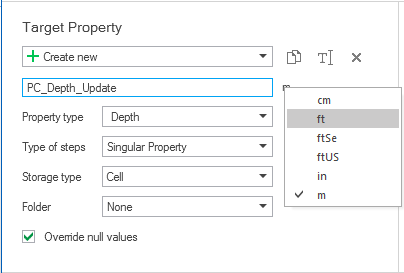
- Under 'Property type', select the property type in the drop-down list. You can change its unit by right-mouse clicking on the unit, and selecting a different unit, see image below. You can also create your own property type in the Property Catalog. See The Property Catalog for more information.
- Under 'Type of steps', you can select whether you want to create a property of a single output, or a property consisting of several time steps or several realizations:
- Create a new property with multiple steps from the input data. In this case the input properties in the expression with multiple time steps are used as reference to the resulting number of time steps in the new property.
- Specify the total number of time steps in the adjacent field. Enter the frequency of time steps next to One step per and select a Start date of the first time step.
- To update an existing property, use the index number in the expression to modify the property for one or more time steps.
- Select the option Number of realizations from input if you want to create a new property with the input expression consisting of one or more properties with multiple realizations.
- Select the option Number of realizations and specify the value in the adjacent field.
- For updating an existing property with multiple realizations, use the index number in the expression to refer to specific realization. If the input expression consists of multiple properties with multiple realizations then the resulting total number of realizations is based on the input property with the least multiple (greater than one) realizations.
- Storage type - Depending on the object type, you can specify different types to 'store' the output of the expression onto (parts of) the object:
- Folder - Only available if there are folders for the selected target object in the JewelExplorer. Select the folder where you want to store the target property ('None' will store the generated property at the highest level under the target object's properties).

|
Duplicates the currently selected property calculator model in the drop-down list (i.e. the active model). The created property in the JewelExplorer is duplicated as well. |

|
Opens the Rename dialog, where a new name can be given to the active property calculator model. The created property in the JewelExplorer is renamed as well. |

|
Deletes the active property calculator model. The created property is also deleted from the JewelExplorer. |
Singular Property Select this option if you want to generate one single outcome of the expression.
Time Steps Select this option if you want to generate a series of outcomes, separated by time units. Click the  icon to open the Time Step Settings dialog:
Multiple Realizations Select this option if you are calculating multiple realizations for the same property. Click the icon to open the Realization Settings dialog:
| Name | Scalar | Cell 1D | Cell 2D | Cell 3D | Node 1D | Node 2D | Node 3D |
|---|---|---|---|---|---|---|---|
|
3D Grid |
Object |
Layer |
Stack |
Cell |
x |
x |
x |
|
Seismic Grid |
Object |
Depth Slice |
Trace |
Cell |
x |
x |
x |
|
3D Mesh |
x |
x |
x |
Element |
x |
x |
Node |
|
Tri-mesh |
x |
x |
Triangle |
x |
x |
Node |
x |
|
2D Grid |
x |
x |
x |
x |
Node |
Node |
x |
|
Polyline Set |
x |
x |
x |
x |
Node |
Node |
x |
|
Point Set |
x |
x |
x |
x |
Point |
Point |
x |
|
Marker |
x |
x |
x |
x |
Node |
Point |
x |
|
Well |
x |
x |
x |
x |
Log |
Log |
x |
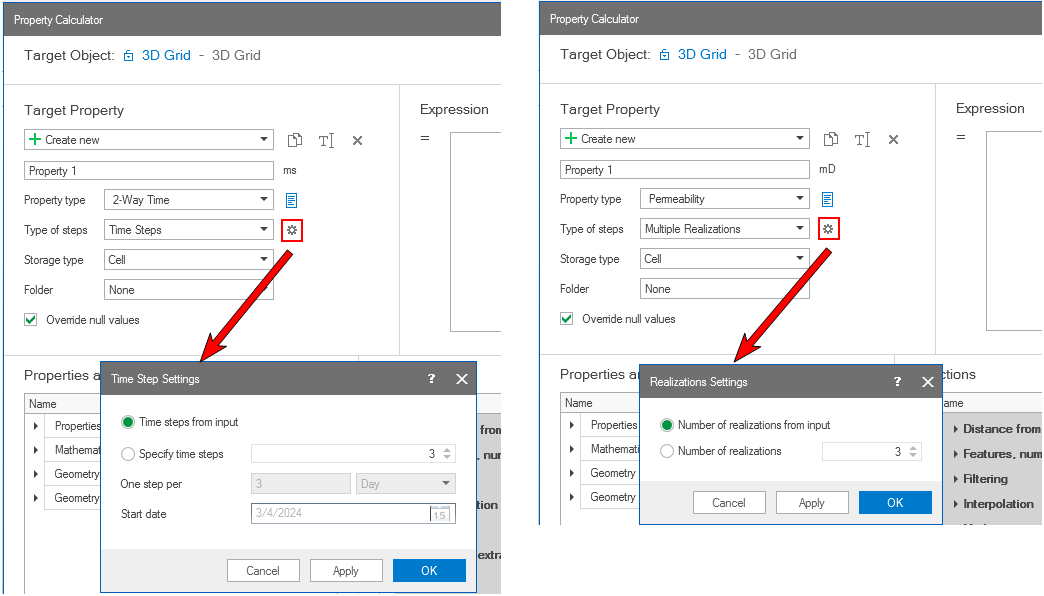
When you are creating a property with multiple time steps (left image) or realizations (right image), you can click the icon behind the 'Type of steps' drop-down list, which opens a dialog where you can specify the input method to create the property. click to enlarge