The JewelSuite-CMOST integrated workflow
With the integrated workflow between JewelSuite and CMG’s intelligent optimization and analysis tool CMOST, you can perform simulation studies (i.e., sensitivity, history matching, optimization, uncertainty assessment) to propagate geological uncertainties from the static model to the dynamic model.
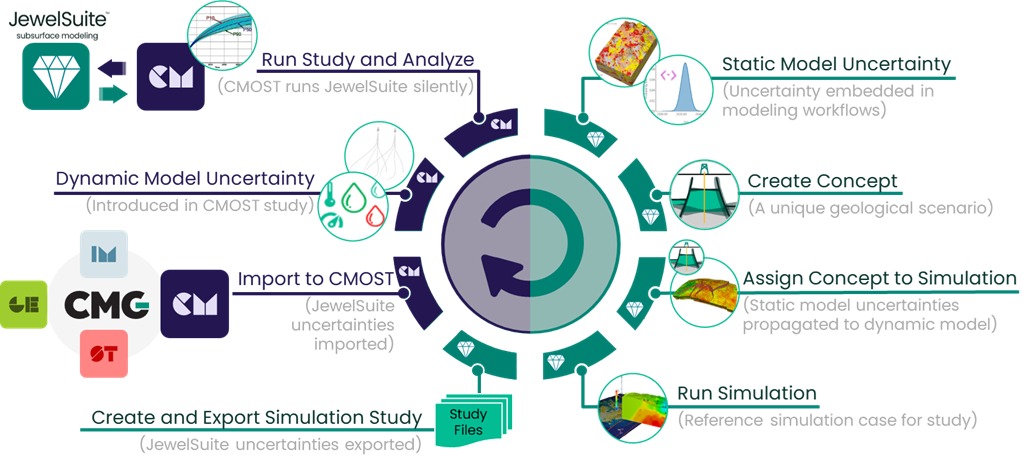
The JewelSuite - CMOST integrated workflow. The steps shown in green are performed in the JewelSuite user interface, while the steps shown in purple are performed in the CMOST user interface. click to enlarge
Once you have run your simulation case successfully with the simulation concept assigned to it, you can proceed with the Simulation Study workflow, where you select the uncertainty parameters to be included in the run. The last step of the Simulation Study workflow is to export the simulation study.
The study folder has all the files required to continue the workflow in CMOST. The exported study files are:
- Simulation input files (*.dat file and *.inc files if they exist)
- Simulation results file (*.sr3)
- StudyAuxiliaryData.json
- UncertainParameters.json
- Jewel file (*.jewel)
For more information on supported uncertainties, see 'An overview of JewelSuite uncertainties in a simulation study'.
Creating and setting up a study in CMOST
When creating a new study in CMOST, select the .dat file located in the JewelSuite exported study folder and select the checkbox to automatically create a master dataset (.cmm) using the base dataset. A base dataset is a complete dataset with the simulation input files and results file (*.sr3).
Parameterization In CMOST, on the left pane under Input > Parameterization > Pre-Simulation Commands > Click Insert and select the Run JewelSuite Silently option. This will open Run JewelSuite Silently settings and all required fields are automatically populated. Clicking Extract will automatically extract JewelSuite uncertainty parameters, along with their defined probability distributions, to CMOST. Yo do not need to do the parameterization in CMOST manually, CMOST will use the exact definitions from JewelSuite.
Objective Functions Depending on the scope of your study, you can define your objective functions in CMOST (Input > Objective Functions) to define the expressions or quantities that you want to minimize or maximize.
Control Centre With the settings under Control Centre, you can define and configure study and engine types (Engine Settings), set scheduler of choice and other simulator settings (Simulation Settings), create experiments that will be run as part of your study (Experiments Table). Click Run to start the CMOST engine. While CMOST jobs are running, engine events are displayed in the table.
- No Validation Conflicts: The JewelSuite-CMOST workflow eliminates validation issues during file transfer.
- Pre-Validated Output: JewelSuite performs all necessary validations and generates a consistent set of files.
- Seamless Transfer: CMOST automatically extracts the required data and continues the workflow without manual intervention or re-validation.
The file exchange process between JewelSuite and CMOST
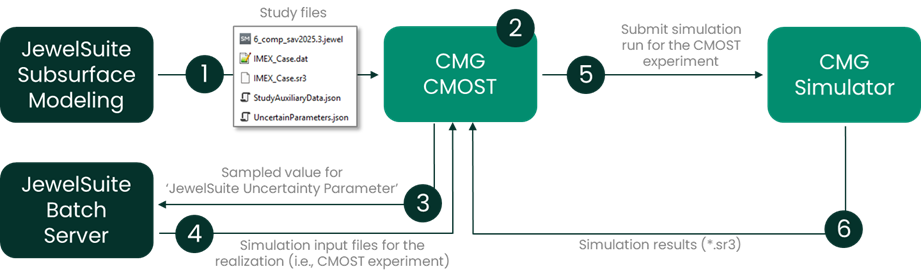
The file exchange process between JewelSuite and CMOST. click to enlarge
- As a user, you create a study in CMOST and use the study files exported from JewelSuite as the starting point.
- You then continue setting up the study in CMOST by selecting the Run JewelSuite Silently option, automatically extracting the JewelSuite uncertainty parameters, defining the objective functions and creating the experiments (i.e., realizations) that will be run as part of your simulation study. CMOST samples the JewelSuite uncertainty parameters for each experiment.
- CMOST sends the sampled the uncertainty parameters to JewelSuite Batch Server for the experiment.
- JewelSuite Batch Server updates the chain of models (within the simulation concept) with the values sampled by CMOST, and builds the deck for the experiment.
-
CMOST then submits the simulation job to the CMG simulator.
-
CMOST receives the simulation results (*.sr3).
Steps 3 through 6 are repeated for each CMOST experiment. In other words, CMOST requests the JewelSuite Batch Server to create the next realization. Once all dynamic simulation runs for the study are complete, you can analyze the results in CMOST.