Horizons pulled up or down when fault cutoff line editing another horizon
When editing a fault cutoff line of one horizon, this may have an effect on another horizon (figure below).
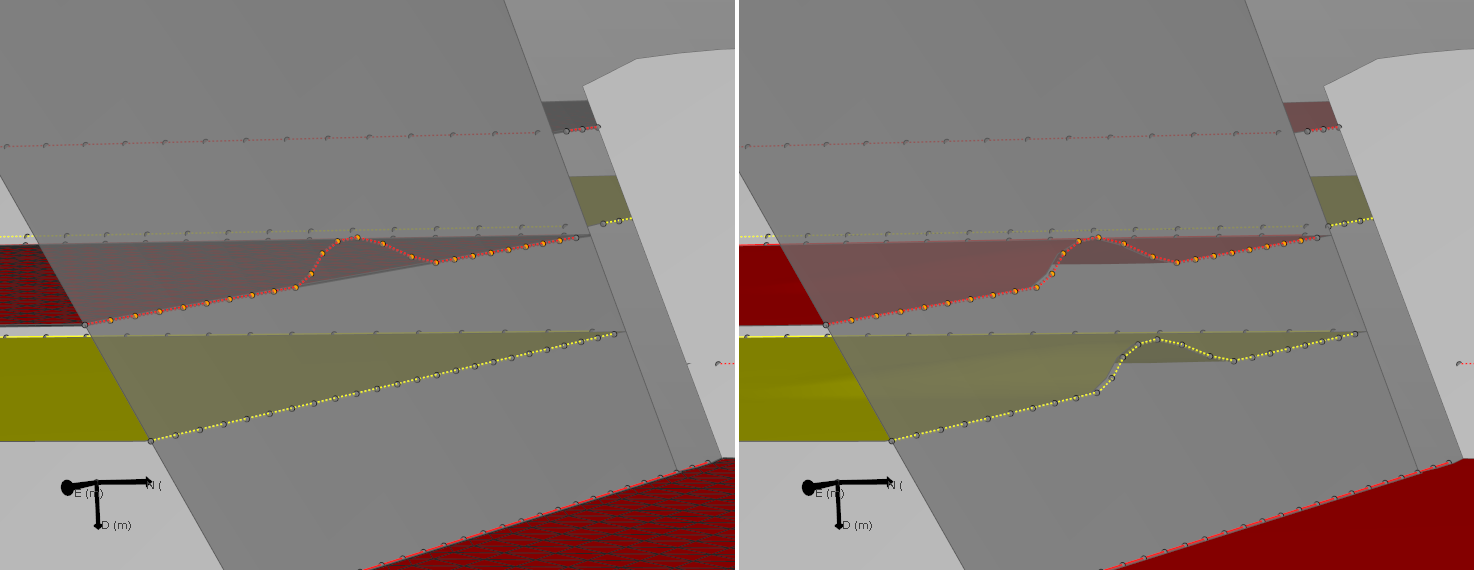
When you edit one fault cutoff line (red horizon) as shown on the left, in some cases this edit may have an effect on adjacent horizons as shown right (yellow horizon) click to enlarge
Where encountered
- 3D Structural Modeling workflow
- model > 3D Structure > Fault Cutoff Line Edits
Cause
This is actually not an artifact. The horizons generated by this workflow step are derived from an underlying JewelGrid. The 'gridder' will access the structures based on a hierarchical model. In this example, the edits made on the red top horizon (on the left in the image above) will be the primary steering factor for the construction of the horizons. The fault cutoff line of the yellow horizon on the other hand is 'unedited', which means that the software will determine its location taking into account the 3D structure zonation used, and align it accordingly.
How to fix the issue
If you do not want horizons to align along the edits of others, you should pin the corresponding fault cutoff lines. You can do this by either editing them or marking them as 'locked'. This will pin the intersection lines to their current position.
Result
Setting the other fault cutoff lines to 'locked' or 'edited' will pin the line to the desired location. The JewelGridder will honor your decision and create the 3D structure accordingly.
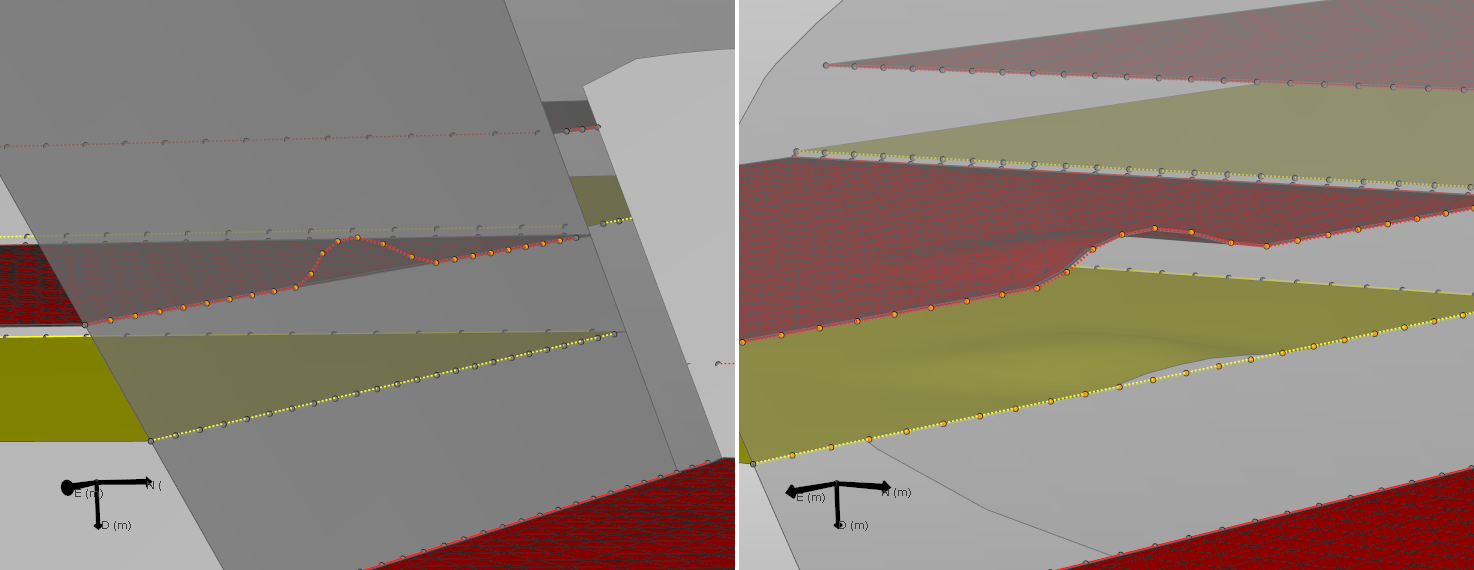
You edit one fault cutoff line (red horizon) as shown on the left, and lock the fault cutoff line of the yellow horizon prior to applying the changes. This will effectively pin the fault cutoff line to the desired position click to enlarge