Using functions in the geomechanical model workflow
Instead of assigning constant values to the material properties of your geomechanical model (model > Geomechanics > Material Properties), in some cases assigning a function is a better option. The choice you make depends on the availability of data and the decisions that are made based on the model.
- When you are still early in the development of a project, only a limited amount of data is available. In this stage you use the constant option.
- Later in time in the development of a project, when more data becomes available - such as seismic data, cores and log data -, you want to relate mechanical rock properties to this data. In this stage you use the function option.
Using a function gives you the flexibility to incorporate correlations between physical properties in your model. You can test different scenarios without changing the geomechanical model.
The advantage of using a function in the workflow, instead of combining the Function Tool with the Property Tool, is that you can integrate it with your geomechanical model. For each Volume of Interest, you can assign the properties to use for the variables in your function.
Although you select a function in the geomechanical model workflow, and you can QC your data on the 3D mesh (Output to 3D Mesh), for Abaqus the actual assignment of the properties to the variables in the function(s) is in the Assign Data step of the Abaqus workflow. Note that the resulting mechanical properties are stored per model folder, not per case.
You can create functions with the Function tool at any moment (Workspace > Tools > Function Tool, or Shift+F8).
The workflow to run an Abaqus case using functions
- Determine whether or not you want to assign a function to one of the following material parameters:
- Bulk density
- Young’s modulus
- Poisson’s ratio
- Create a function for each parameter with the Function Tool.
- Create a geomechanical model and follow the complete workflow. With the Material Properties form, assign a function to the parameter(s).
- Create a 3D Mesh.
- Optional - QC your GM model properties on your 3D mesh, using the Output to 3D Mesh tool.
- Create an Abaqus case using the Abaqus workflow, follow the complete workflow.
- In the Assign Data step, select the properties to use in the function(s) that you have assigned to the parameter(s). You can do this for the full volume or for each VOI.
- Run your simulation with Abaqus.
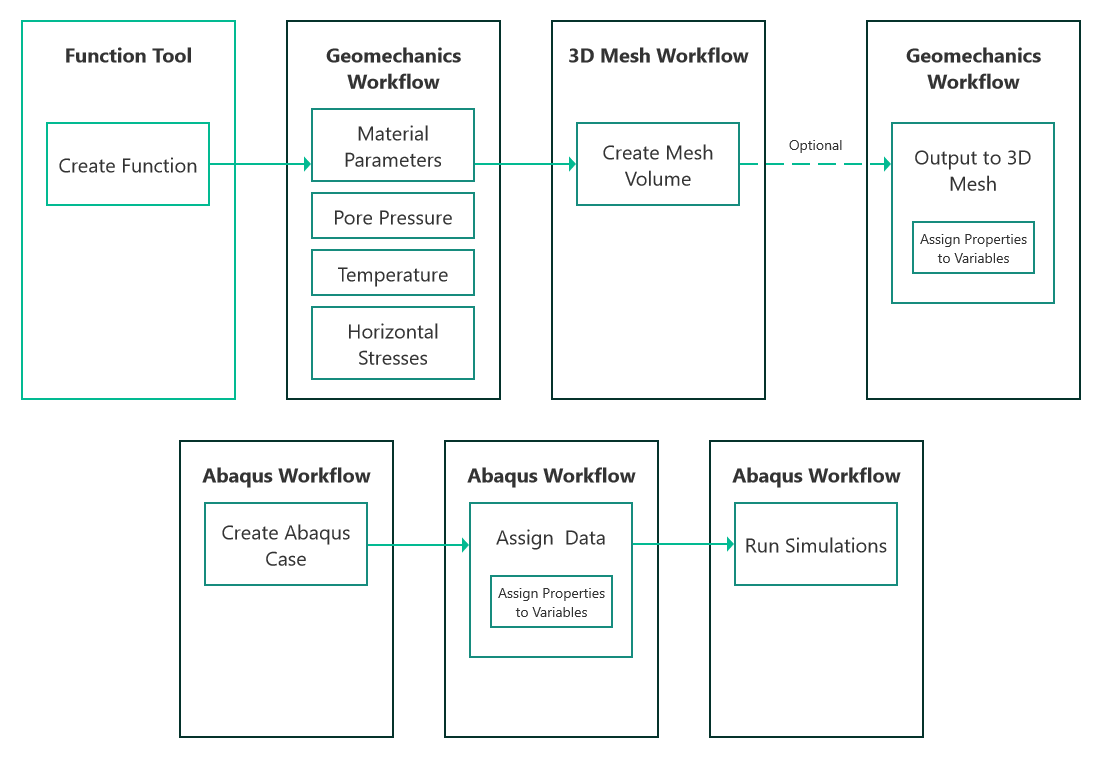
Schematic overview of how to use functions in your geomechanical model and run an Abaqus case click to enlarge