Using the special edit forms
There are several special edit forms that are used to modify and view a specific type of data in the simulation input. These are:
Property Editor
This editor is used on the reservoir description panel to edit reservoir properties.
A reservoir property is a volume quantity which is written in a linear stream to the deck. Adjacent values in the linear stream, which are identical, can be grouped using repeat counts.
The property editor allows the property to be modified and views in both forms: as a linear list with repeat counts and as a volume.
List view form of the Property Editor
The list view has three columns: Index, Repeat and Value.
The Index column indicates the range of IJK values that the row presents. If the repeat count is one, the index column will indicate only a single IJK entry. This column is read-only and changes as repeat counts are modified and rows are inserted or removed.
The Repeat count indicates the number of sequential values that are identical. The count can be modified to change the number of sequential values. The count must be >= 1. As the count is increased values are shifted down the linear array.
The Value is the actual value to be repeated.
The total size of the property cannot be changed in the property editor. The size is governed by the grid dimensions that are set elsewhere. Therefore, if too many values are added in the list view, the list will be truncated. Likewise if too many values are removed, zeroes will be added to pad the list to the proper size.
Volume view form of the Property Editor
The volume view is a kind of spreadsheet view where the list of K values is the master table and the detail table has J values as rows and I values as columns.
Two combo boxes above the detail table allow the I, J, and K values to be rotated among the row and column values of the detail table and the master table.
Edits can be made in either the volume view or the list view. If edits are made in one view, the other view will be brought up to date at the moment it is exposed.
Matrix Editor
The Matrix Editor supports the edit of a two-dimensional data structure. There are only a few of these types of data structures outside of the tables that are part of the normal organization of the simulation input.
One example is the binary interaction table for compositional simulations.
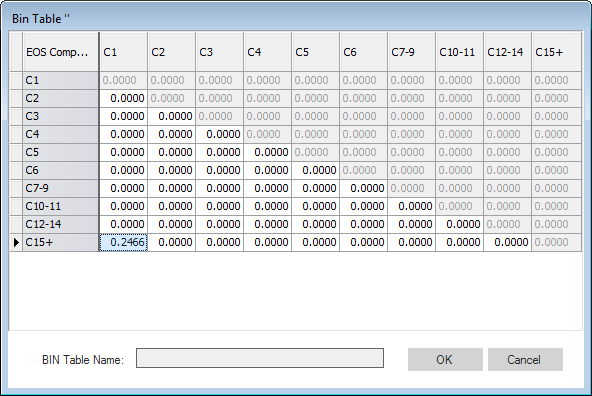
Matrix Editor click to enlarge
Matrix Editor example
The distinguishing feature of the matrix editor is that the rows have headers. In the case of the binary interaction table, the row headers are component names.
The matrix editor might also enforce special requirements on editing. In the case of the binary interaction table, the entries must be symmetric about the diagonal and this is enforced by the editor.
The N-space Editor is used to view or modify a three, four or five dimensional table. The Lift Table Editor is a good example of an N-Space Editor.
The image below shows a Lift Table which is a four dimensional data structure. Two dimensions are listed in the left hand columns and the remaining two dimensions are represented in the table. The dimensions can be shifted from the table to the left hand columns by changing the selections in the drop-down boxes above the table.
For a five dimensional structure, an additional column would be present on the left. For a three dimensional structure only one column would be present on the left.
The data that is displayed in the table is determined by the rows that are selected in the left hand columns.
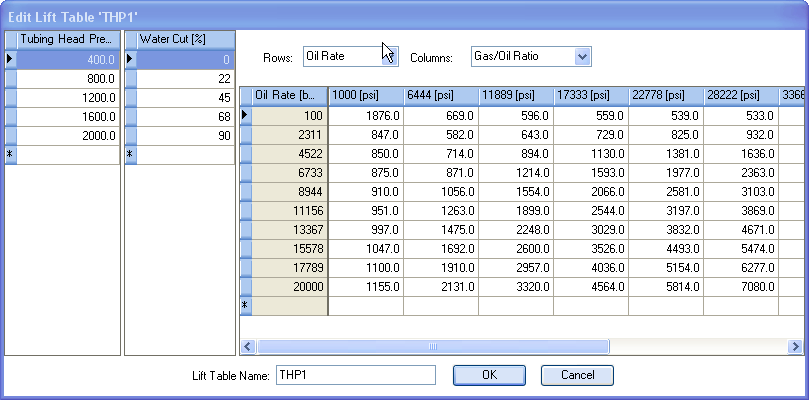
N-Space Editor example click to enlarge
In the table, the first column represents the values of one dimension and the column headers represent the values of the other.
The n-space is an interpolated structure, therefore the dimension values are always sorted in increasing value. Values can be added to any dimension by entering values in the new row or last row in the column. Values cannot be added to the dimension represented in the column headers until that dimension is moved to one of the other columns using the rows or columns drop-down boxes.
Tuple Editor
A tuple is a parenthesized list of values that can appear as a single cell entry. A tuple is used in certain places where it would not be effective to assign a separate cell to each entry in the tuple. The tuple text can be edited directly, however, a tuple editor is defined for each cell that contains a tuple to facilitate the entry of appropriate values. The tuple editor is opened via the “...” button in the field containing the tuple, as shown below.

Tuple in table click to enlarge
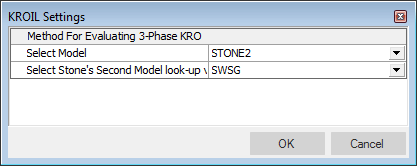
The Tuple Editor click to enlarge