Working with the Audit Trail
With the Audit Trail you can review changes made to the solution for each session of work that has been performed. In addition to these reviewing capabilities, you can also access operations that have been previously performed and re-run them directly from the Audit Trail view.
To open the Audit Trail, click Open (Home > Audit Trail > Open).
Operations that are available from the Audit Trail have an operation icon:
 indicates that the operation was run as part of a script and that it can be re-accessed.
 indicates that the operation was run through one of the workflow forms and that it can be re-accessed.
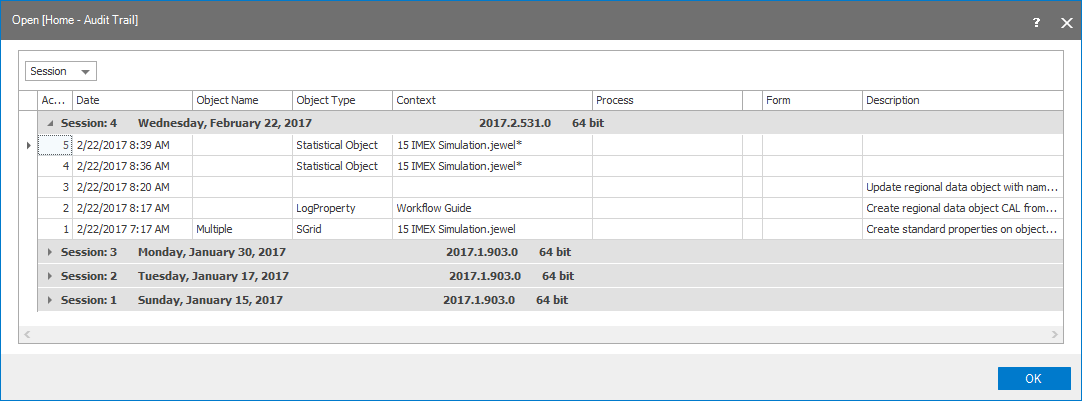
The Audit Trail click to enlarge
Workflow automation options in the Audit Trail view
Click the operation icon to open the workflow form that was used to run the associated operation. This will allow you to review the parameters that were used to execute the operation originally. You can then re-execute the operation, adjust and then execute the operation with the new parameters, or copy the operation to a workflow automation script. To copy the operation into a workflow automation script, click the operation icon and drag it into the Workflow Automation Script.
Audit Trail access via the JewelExplorer
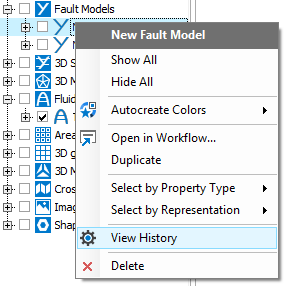
Open the Audit Trail via the object context menu in the JewelExplorer click to enlarge
To show the audit trail for a specific item or property, right-click it in the JewelExplorer and select View History. This will open the Audit Trail form and will show only the history for the clicked item. You may review and re-run any operation associated with the clicked item by clicking on the operation icon .