The administration console
With the administration console, which can be accessed from the start menu, you can change settings for the DMS server.
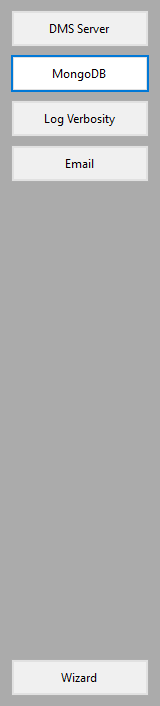
The admin console holds different tabs that enable you to change multiple settings for the DMS Server click to enlarge
DMS Server About setting up the DMS server service or IIS, discussed in installing the DMS Server.
MongoDB About deployment database of DMS server, is available in the System Administrator Guide.
Log Verbosity To setup the logging verbosity, see Setting logging verbosity.
Email On this page you can setup the notifications like email sending, for more information, see Setting up notification.
Wizard This button opens the wizard.
Administration console via the command line
The administration console can also be started via the command line. To do this, go to the dmsadminconsole folder (installation folder) and open the command line in administrator mode, then type (in this example deploying a mongo database):
JewelDBAdministrationConsole.exe database --connectionstring="mongodb://john:12345Ab!@dms.baker.hughes:27333/DmsWithPassword2?authSource=admin"The full set of options is shown below. There are four options in which to start the administratorconsole (each option is followed by its arguments):
- Command line arguments for the database. Open the command line in administrator mode. In the command line type: [location of the executable] JewelDBAdministrationconsole.exe database, followed by one of the listed arguments.
Command line argument Explanation --tls Connect to database using Tls, Default = false, Required = false --sslselfsigned Use ssl self signed certificate, default to false when left empty, Required = false --host Database server host or IP address with port number, Required = false --name Database name, not required --deployuser Database deployment user. When empty, Windows authentication is used --deploypassword Database deployment user password. When empty, Windows authentication is used --mode Default = “database”, Authentication method to use (Database or Windows). Defaults to Database, Required = false --connectionstring This is the mongo connectionstring, not required. When the connectionstring is used, the following arguments are not necessary:
--host
--name
--deployuser
--deploypassword
--mode
--usedpapi Enable encryption of the Database Password using Windows DPAPI, Required = false --confirmdatabasetodrop Confirmdatabasetodrop, Required = false --dropdatabase The database will be dropped before deploying a new one, Required = false --droponly Only drop database. No new database will be deployed, Required = false - Command line arguments for install. Open the command line in administrator mode. In the command line type [location of the executable] JewelDBAdministrationconsole.exe install, followed by one of the listed arguments.
Command line argument Explanation --mode Specify JewelDB as a service (service, iis). Required = true --user Service/Identity account username. Required = true --password Service/Identity account password, Required = true --builtinaccount Default = false, Specify if Service/Identity account is a builtin account, Required = false --remove Default = false, Remove installed services, Required = false - Command line arguments for startlocalmongodb. Open the command line in administrator mode. In the command line type [location of the executable] JewelDBAdministrationconsole.exe startlocalmongodb, followed by one of the listed arguments.
Command line argument Explanation --port Start mongodb with specified port, Required = true --dbname Name of the database, Required = true - Command line arguments for Stoplocalmongodb. Open the command line in administrator mode. In the command line type [location of the executable] JewelDBAdministrationconsole.exeStoplocalmongodb, followed by the listed argument.
Command line argument Explanation --port Stop mongodb with specified port, Required = true