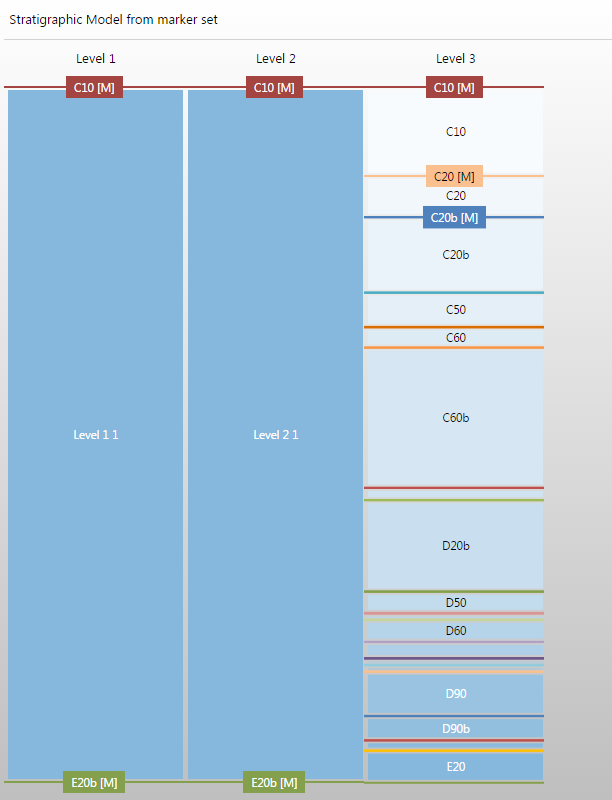
Stratigraphic model, zones derived from events represented by a marker set: markers are by default placed at Stratigraphic Level 3 click to enlarge
The stratigraphic model defines the stratigraphic hierarchy of the model zonation in the form of 'stratigraphic levels'. By default, three stratigraphic levels exist in the stratigraphic model (but you can change this), with levels on the left being higher in hierarchy then levels on the right.
Each stratigraphic level can contain one or more zones defined by their top and base geological event. Only events of type 'horizon', 'unconformity' and 'intrusion' can be used to define zone boundaries in a stratigraphic model.
Of both factors, the underlying data representation is dominant, with surfaces based on ‘dense’ data representations (i.e. tri-meshes, 2D grids, point sets and polyline sets) always being constructed before surfaces based on ‘sparse’ data representations (i.e. markers). In the application, this is called geometric prioritization, which follows the logic that dense data, typically derived from seismic interpretations, is of higher quality and more continuous than ‘sparse’ data derived from well log interpretations (i.e. markers). Surfaces based on ‘dense’ data are therefore constructed first and constrain the surfaces based on ‘sparse’ data. Within the group of events with ‘dense’ data, first stratigraphic Level 1 surfaces will be constructed, then Level 2, etc. Only when all ‘dense’ data surfaces are constructed, ‘sparse’ data surfaces come into play, following the same hierarchical logic. The combination of geometric prioritization and stratigraphic order, induced by the position of the events in the stratigraphic model, ensures that the internal zonation of the 3D geological model is geologically realistic.
The Stratigraphic View is commonly opened as part of the Stratigraphic Modeling workflow in the Stratigraphy strip. In this case, opening the Edit Model form also opens the Stratigraphic View, and the two may be used together when defining the hierarchy. An initial hierarchy is displayed depending on your selection on the Generate Zones form of the workflow.
If a marker set, seismic interpretation or surface set has been assigned, this initial hierarchy is displayed when the view opens. Otherwise, if the Manual option was selected in the Generate Zones form, a blank Stratigraphic View is opened and you can use any of the means described later in this section to manually develop the hierarchy.
To review the stratigraphic model, you can also access the context menu of the stratigraphic model in the JewelExplorer with a right-click and select the option Open In Workflow.
Stratigraphic model, zones derived from events represented by a marker set: markers are by default placed at Stratigraphic Level 3 click to enlarge