Installing licenses on clients
License installation on client machines is handled by the JewelSuite Licensing Wizard. The Licensing Wizard runs automatically the first time JewelSuite is opened, and can also be opened at any time from the Start menu.
-
On the first panel of the Licensing Wizard, click Next > to proceed to the Import License panel.
-
Select Use a JewelSuite floating license server and click Next >.
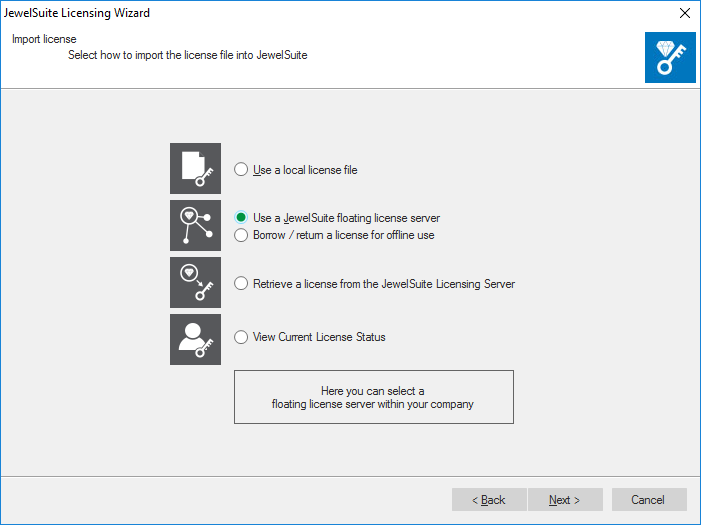

Main menu of the Licensing Wizard click to enlarge
-
Enter the Server (hostname) and Port number as provided by your IT department. Click Next >.
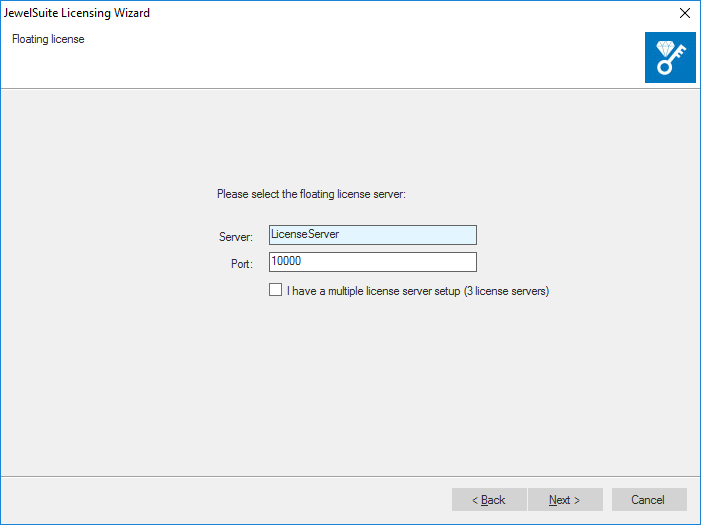

click to enlarge
-
Click Finish to complete the configuration.
To verify the license is working, open the Licensing Wizard again from the Start menu and select View Current License Status. This shows which features are available under the current configuration.
You can now start the JewelSuite software. If the application cannot connect to the license server, see Troubleshooting license errors.