Property well matching during data preparation
With the Property Well Matching tool (prepare > Post-Processing Tools > Tools) you can QC and/or well match the property of a surface representation (2D grid or tri-mesh) with a property of the same type on well markers (or point sets). You can use surface representations of a range of events, e.g. stratigraphic events (horizons, unconformities, intrusions), fluid contacts and maps (for the full list of supported event types, see 'Guidelines on input' below). Almost any property type can be used to property well match, ranging from geometrical, petrophysical and seismic properties to material and geomechanical properties. A requirement is that the property is continuous (not discrete) and is not commonly plotted on a logarithmic scale (for more details, see 'Guidelines on input' below).
You would typically use this tool in the following situations:
- When you want to well match a spatially distributed property other than depth.(*) For example properties resulting from seismic attribute analysis and seismic inversion, which you want to match to the interpreted well logs.
- When you want to QC spatially distributed properties (of a surface) in relation to the same property at the well locations.
(*) Although you can use 'depth' as an input property in the property well matching tool, realize that this tool does not modify the geometry of the (well matched) surface. If you want to update the geometry of a well matched surface, use the dedicated Depth Well Matching tool in the same strip.
Before any well matching takes place, as a first step the mismatches between the surface property and the property of the marker (or point set) are calculated and displayed as residuals in the residuals table on the form. These values are interpolated and saved as a surface property in the JewelExplorer. You can QC this property in a dedicated well matching view, after which you can decide to perform the well matching.
Settings on the form are memorized/saved for the combination of selected data source, property type and the selected marker set (or point set). This way you can easily re-run the tool in case there are updates of the corresponding input properties. Also, when a new well or well marker is added to your selected group, it will automatically be included in any subsequent well matching run. The tool can be used in workflow automation as the well matched (output) property is overwritten after each well matching run, making the output directly usable in subsequent workflow automation steps.
- The following event types are permitted: horizon, unconformity, intrusion, fluid contact, fracture, map, property and undefined.
- To property well match a surface to a marker or point set, the surface has to have a 2D grid and/or tri-mesh representation.
- The surface you want to well match must be stored in one of the following folders: Imports, Data, Seismic Interpretation or Surface Set.
- Permitted property types are all continuous properties except properties that are commonly plotted in logarithmic scale, time-stepped properties and properties that are part of multiple realizations.
- You can well match multiple events to the same marker property. For example, you can well match multiple porosity maps to the same porosity property at the well locations.
Guidelines on output
- It is recommended to first QC residuals before you might decide to apply the well matching. The output of the residual calculation consists of a residual property, called: <property name>_WM Residual Pre (<source name>, <marker set/point set name>, <property type>) which is stored as a property of the used surface representation (2D grid or tri-mesh). The same property is stored under the marker (or point set) with the corresponding representation (2D grid or tri-mesh) added to the name.
- After having QC'd the residuals, you can apply them if desired. When you apply residuals, a new property, containing the well matched result, is generated under the event in the JewelExplorer. The name of this property is <property name>_WM.
- When you well match a surface representation with the same property for a second time, the previously well matched property (i.e. <property name>_WM) will be overwritten.
- Settings on the form are saved ('memorized') on the basis of the combined selection for 'Source', 'Property type to match' and 'Marker Set' (or 'Point Set'). Re-running the tool with a different input property type for the same event (e.g. first you run Event A with porosity, then you run Event A with velocity) will therefore result in the loss of the previous settings. You can retrieve these settings via the audit trail. A workaround is to duplicate (and give another name to) the event.
 Step 1 - Specify input data at the top of the form
Source Select the folder that contains the event(s) with the surface representation(s) that you want to property well match. You can select from one of the following data sources: Imports folder, Data folder, a Seismic Interpretation or a Surface Set.
Property type to match Select the property type that you want to well match from the drop-down list. The list is filtered and only shows properties of 2D grid and tri-mesh representations of relevant event types in your selected source. For an overview of property types and event types that are 'permitted' for property well matching, see Guidelines on input above.
Match to
- Marker Set Select this option if you want to match input properties to marker properties.
- Point Set Select this option if you want to match input properties to properties of point sets.
Marker set (Disabled when matching to a point set) Select the marker set that contains the markers to which you want to well match. You can in/exclude markers for well matching via the 'Use for modeling' column in the Marker Table; if the 'Use for modeling' checkbox is unchecked the marker is excluded from well matching. As soon as one or more markers of your selected marker set are excluded, a warning icon appears behind the selection drop-down, see image below. You can ignore the warning if you are deliberately excluding markers.

When not all markers in the selected marker set are included in modeling, you are warned via an info icon on the form. You can ignore the warning in case you are deliberately excluding one or more markers from your selected marker set. In/excluding markers is done via the 'Use for modeling' column in the Marker Table. click to enlarge
Wellbores (Disabled when matching to a point set) Select the well group that contains the wells with markers to which you want to match surfaces. The selection is automatically set to 'All wells' (default well group under 'Well Data' > 'Wells' in the JewelExplorer, containing all wells). If you do not want to match to all wells in the selected well group, click the pencil behind the drop-down and make a sub-selection of wells in the 'Wellbore selection' dialog that opens.
Point set source (Disabled when matching to a marker set) Select the source where the point set is stored to which you want to property well match. The point set must be stored in one of the following sources: Imports folder, Data folder, a Seismic Interpretation or a Surface Set.
Step 2 - Select input properties, specify interpolation settings, calculate residuals
On the Input tab, the input table shows the events with a 2D grid and/or tri-mesh representation in the selected source (under 'Source') and which have a property of the selected property type (under 'Property type to match').
Event to Property Match
Name Check the box in front of the Name column for each event that you want to include in the property well matching run. Then check the box of the surface representation (2D grid and/or tri-mesh) that contains the property.
Property From the drop-down list in the Property column, select the property that you want to well match. If no property is available for selection, this might be due to the following reasons:
- No property of the selected property type (under 'Property type to match') exists for the event.
- Within one event, you have checked the checkbox of the 2D grid and tri-mesh representation, but the properties of both representations do not carry the same name.
Property to Match to
Marker (Not applicable when matching to a point set) From the drop-down list in the Marker column, select the marker that contains the property to match to. All markers in the selected marker set with a property of the selected property type, are available for selection. If the drop-down list is empty, no marker in the selected marker set with a property of the selected property type exists.
Point set (Not applicable when matching to a marker set) From the drop-down list in the Point Set column, select the point set that contains the property to match to. If no point set is available for selection, check the selected point set source at the top of the form.
Property Select the property to match to. All the properties of the selected property type that exist for the selected marker or point set, are available for selection.
Automatic selection of properties in the Input table
Property of the event you are matching:
Once you have selected the 'Source' and 'Property type to match' at the top of the form, the input table lists all events that have 2D grid and/or tri-mesh with a property of that type. The property is auto-selected from the drop-down list when the 2D grid and/or tri-mesh representation(s) have only one property of the selected property type (in case the event has a 2D grid and tri-mesh representation, the property needs to carry the same name under both representations in order to be pre-selected, see image below).
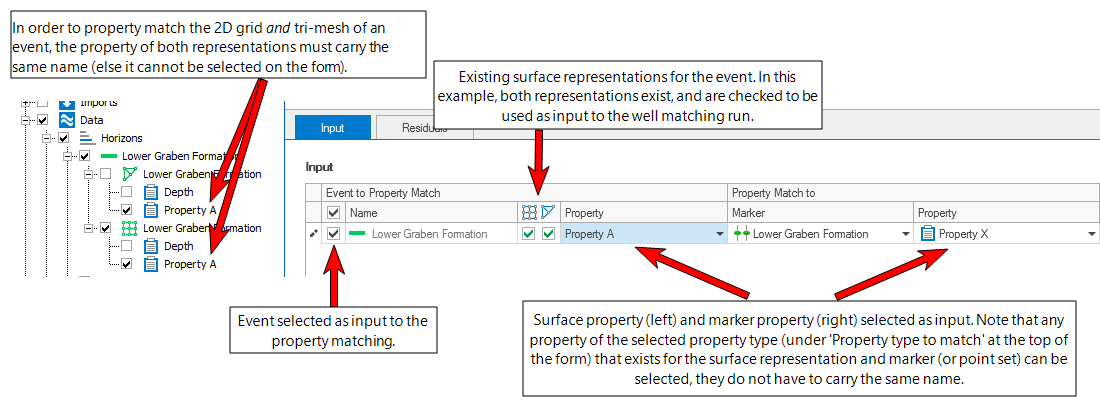
Example of selections in the Input table. The 2D grid and tri-mesh representations of event 'Lower Graben Formation' have a property (called 'Property A') corresponding to the selected property type (the property type is selected at the top of the form and not shown in this image). As the checkboxes of both representations are checked, both surfaces will be well matched to the selected marker Property X. click to enlarge
Residual Interpolation
With the settings under 'Residual Interpolation' at the right side of the Input tab you specify, per event, how the residuals (once they are calculated) should be interpolated over the modeling area. The residual properties 'WM Residuals Pre' and 'WM Residuals Post', which will be created after 'Calculate' and 'Apply' respectively, are created based on these settings.
Event Select the event of interest in the Input table by clicking on it (it turns blue and a little arrow appears in front of the row). The name of the selected event will be displayed in light gray.
Method Select an interpolation method to construct the surfaces.
Inverse Distance Weighting This method uses the distance-weighted algorithm to interpolate the surface using the input locations as constraining input.
Ordinary Kriging (Legacy) This selection applies the geostatistical Kriging method to interpolate the property across the area. This type of Ordinary Kriging does not make use of the industry standard Kriging library and is performance optimized.
Power This option is only enabled when method Inverse Distance Weighted is selected. The Power is the exponent used for the weighting of the distances. Choose a value between 0.5 and 7.
Function This option is only enabled when Ordinary Kriging is selected. Specify the type of kriging: Exponential, Exponential power, Spherical, or Gaussian.
Major range This option is only enabled when Ordinary Kriging is selected. Specify the major range of influence of the input locations.
Minor range This option is only enabled when Ordinary Kriging is selected. Specify the minor range of influence of the input locations.
Azimuth(GN) This option is only enabled when Ordinary Kriging is selected. Specify the azimuth (to Grid North) of the axis corresponding with the major range.
Power (Ordinary Kriging) This option is only editable when the method is 'Ordinary Kriging' and the function is set to 'Exponential Power'. You can adjust the lateral extent of the kriging. Enter a value between 0 and 2.
Radius of influence Check the box to use a radius of influence and enter a value in the entry field. The radius of influence determines the distance over which you allow the interpolation of the residuals (and ultimately the well matching) to take effect. When matching to markers, the marker is the midpoint of the radius of influence; when matching to point sets (not enabled for well matching faults and 3D mesh structural models), each node of the point set is a midpoint of the radius of influence. When you leave the box unchecked, the interpolation takes effect over the entire modeling area (no limit).
Repeat the above steps for all the events that you selected as input to the well matching. You can right-mouse click on an event and copy-paste the settings to other events.
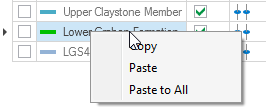
You can copy-paste the residual interpolation settings from one event to the other. click to enlarge
Step 3 - QC the residuals
After clicking 'Calculate' at the base of the form:
- The Residuals tab opens with the calculated residuals displayed in the table. A residual is the difference between the property of the input surface and the property of the marker (or point set), measured vertically. In some cases an info-box may appear in the table cell, or a table cell remains empty. See Info-box and other scenarios in residual table below for explanations of the info-box messages and other special scenarios.
- In the JewelExplorer, a residual property WM Residual Pre is added to the input 2D grid and/or tri-mesh representation and to the marker (or point set). The property contains the interpolation of the residual values, based on the settings as specified under Residual Interpolation on the Input tab (Step 2). The name of the residual property reflects how it was generated:
- In the Color Settings section on the form, the color scale is automatically scaled to the maximum absolute residual value and the colorset 'S_RedWhiteBlue' is auto-selected. You can change the color set and/or scale at any stage during QC by selecting/typing in the corresponding entry fields and clicking Update Colors.
<property name>_WM Residual Pre_(source, marker set (or point set), property type)
Info-box and other scenarios in residual table
In some cases, no residual could be calculated, or a residual was calculated under special circumstances. In these cases an info-box with a short description of the issue is shown in the respective table cell. A cell can also remain completely empty, or an event can have multiple residuals in the same well. See below for an overview of all special scenarios that can occur in a table cell.
1)  The cell shows an info-box but does not contain a residual value. The info-box can contain the following messages (note that these messages may occur simultaneously):
- No marker The wellbore does not have a corresponding marker for the event. The application performs this check geometrically (each wellbore-surface intersection has a corresponding cell in the residual table), therefore this message might appear when the wellbore intersects the surface multiple times (e.g. in a horizontal well).
- Residual property cannot be calculated There can be a variety of causes, but the most probable causes are: the marker is located outside of the model edge or in a fault gap; the surface property is invalid; the residual value was removed from the Marker Table.
- Marker excluded via 'Use for modeling' The marker is not included in well matching as the 'Use for modeling' checkbox in the Marker Table is not checked.
- Wellbore excluded via 'In model data' The marker is not included in well matching as the 'In model data' option on the well's context menu is switched off. When 'In model data' is switched off, all markers of that wellbore are automatically excluded (grayed-out) in the 'Use for modeling' column of the Marker Table.
- Marker property not defined The marker exists in the Marker Table but its property value is invalid.
- Cause unknown Another cause than the ones mentioned above has prevented the application from calculating a residual.
Special scenarios with no info-box in the cell
The following special scenarios can occur while no info-box is shown in the cell.
3)  The cell is empty (no value and no info-box). This is not related to any modeling issue but due to the arrangement of residual data in table format and typically occurs when another event has multiple markers.
4)  There are multiple markers for one surface intersection. The application calculates the residuals for all these markers. In case you would proceed with the well matching, the application uses the marker closest to the surface (the other markers are ignored). The post residual property will show zero-residual for the used (closest) marker while the other markers keep a residual. Note that a horizontal well with multiple markers (one marker at each surface intersection) is a valid scenario. It is therefore recommended to always check the wellbore and markers when multiple residuals for one event exist.
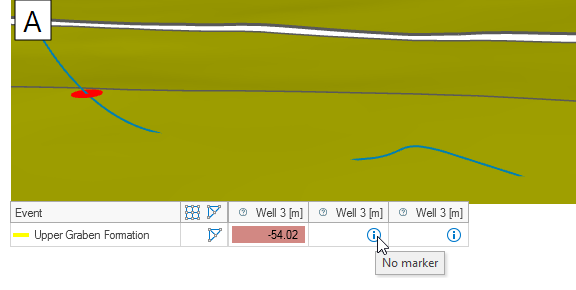
Image A: The wellbore intersects the surface three times but only one corresponding marker is detected. The other two intersections receive a 'No marker' message in the residual table. click to enlarge
Even when your goal is to well match the surface property, it is always important to first QC the residuals before you apply the well matching. There are two ways to QC the residuals: via the table on the form and by displaying the residual property 'WM Residual Pre' in the dedicated Well Matching Residual View.
QC residuals using the table
The following table filter options are available:
Hide wellbores and representations when all their associated (absolute) residuals are smaller than When the residuals table is very full, you can use this option to reduce the number of wells and/or events shown in the table in order to focus on large residuals. You do this by entering a residual value in the entry field: when all residuals of an event, a wellbore or point set are smaller than this value, the event/wellbore/point set will be hidden in the table.
Show residuals This option is only available when you have already applied your well matching and you have pre-well matching and post-well matching residuals. Select Post Well Matching if you want to display the remaining residuals after well matching; select Pre Well Matching if you want to display the residuals prior to well matching.
Arrangement This option determines the row/column arrangement of the table. The default selection By Representation places the events in rows and the wellbores and/or point sets in columns. Selecting By Wellbore places the wellbores and/or point sets in rows and the events in columns.
QC residuals using a property in a dedicated view
In the JewelExplorer, under the well matched surface or marker/point set, the 'WM Residual Pre' property has been added when you clicked 'Calculate' at the base of the form. This property shows you how much the surface will shift as a result of well matching. It is recommended to review this property in the dedicated Well Matching Residual View before carrying out the well matching.
By visualizing this property in the dedicated view, you can see the full effect of the well matching on the entire surface. To do this, click in a cell in the residuals table. The objects displayed in the view depend on the clicked cell:
- Clicking on a cell with a residual value displays the corresponding marker-surface (or point set-surface) combination in close-up view.
- When the arrangement is 'By Representation', clicking in the same row (but not on a residual value) displays the residual together with all wells and markers or point sets associated to the surface.
You can make changes to the input and re-calculate the residuals based on updated settings. For example you can in- or exclude more wells or markers, update the interpolation settings, etc. Each time you click Calculate, the residual property is overwritten.
Once you are satisfied with the suggested surface correction, move to 'Step 4 - Well match the surface'.
Step 4 - Property well match the surface
Click Apply at the base of the form to apply the property well matching and keep the form open, or click OK to apply the property well matching and close the form. Upon clicking:
- The well matched property 'WM' is created and added to the surface representations in the JewelExplorer. The name of the residual property is <property name>_WM.
- Per surface representation, a post well matching residual is calculated and displayed in the table. The post residual is the difference between the well matched property and the property of the marker (or point set), measured vertically.
- Residual property WM Residual Post is added to the surface representation and marker (or point set) in the JewelExplorer. This property contains the interpolation of the residual values after well matching. The interpolation settings are based on the settings as specified under Residual Interpolation on the Input tab (Step 2). The name of the residual property reflects how it was generated:
<property name>_WM Residual Post_(source, marker set (or point set), property type)
Visualize property WM Residual Post in the dedicated Well Matching Residual View by clicking in a cell in the table on the form. Under normal circumstances the values of this property are (near) zero everywhere.
You can update your well matching results, e.g. by adding/removing markers and/or point sets, adding/removing wells, or updating the residual property interpolation settings and re-apply the well matching. Each time you re-run the well matching, the well matched property, and the properties WM Residual Pre and - Post will be overwritten, guaranteeing that these properties are in sync with the latest well matching run.
Exporting residual data
The 'Export residual data to CSV' option ( ) located at the upper-right side of the residual table, lets you export your pre and post well matching residuals in CSV format. All residual data that has been calculated (or applied) is gathered in the export, irrespective of any filters applied to the table on the form.
To export the data
- Click the 'Export residual data to CSV' icon.
- From the Export to... dialog that opens, save the CSV file at your preferred location.
- The file contains the following data:
- Per wellbore the 'pre well matching' residuals and (if property well matching was performed) also the 'post well matching' residuals, including their combined statistics (min, max, mean, median and standard deviation).
- If point set matching was performed, the point set residuals, including their combined statistics (min, max, mean, median and standard deviation).
Creating a point set from all residual data (only for marker residuals)
With the 'Create point set(s) (in Data folder) with all marker residual data' option ( ) located at the upper-right side of the residual table you can create, per surface, a point set from marker residuals. The nodes of the point set represent the marker locations, the residuals (pre and post well matching) are stored as properties of the point set. Using point sets to store your well matching results allows you to create extra copies of your well matching actions, to plot residuals in the CoView for example, or to perform advanced analysis of the residuals (trends, scatter plots).
The point set is stored under a newly created event in the Data folder, under the respective event type (Horizons, Faults, Unconformities, etc). The event name (under which the point set is stored) is assembled as follows:
Event name_WMResults (Source folder, Marker Set (or Point Set), Property type): Input representation
To create the point set(s)
- Click the 'Create point set(s) (in Data folder) with all marker residual data' icon.
- Verify that an event, holding the point set, is created in the JewelExplorer > Data folder, under the respective event type (e.g. Horizons, Faults, Intrusions, etc.).
-
The point set contains the following properties:
- Depth (default)
- WM Residual Pre
- (Optionally) WM Residual Post
- Wellbore Names
- Visualize the point set and property of your choice in the 3D View by checking the boxes in the JewelExplorer.